When you need to convert written text into speech in a web application, the built-in Web Speech API is still a good baseline. It is widely supported in modern browsers: https://caniuse.com/speech-synthesis
Create a SpeechSynthesisUtterance object with the text to convert, and then pass the object to the speechSynthesis.speak() method.
const utterance = new SpeechSynthesisUtterance('Hello World!');
window.speechSynthesis.speak(utterance);
Visit the MDN documentation for more information:
https://developer.mozilla.org/en-US/docs/Web/API/Web_Speech_API
For this example, I wanted to use a managed cloud service instead: Google Cloud Text-to-Speech.
The service gives you access to Google's hosted voices and lets you tune options such as language, pitch, and speaking rate. Because Google keeps expanding the available voice catalog, the sample application loads the supported voices dynamically instead of hardcoding them.
Pricing and voice availability change over time, so check the current product page for the latest limits and pricing details: https://cloud.google.com/text-to-speech/
Server 
The backend is a Spring Boot application that exposes two endpoints:
GET /voicesreturns the list of voices supported by the Google API.POST /speakaccepts text and speech options, calls Google Cloud Text-to-Speech, and streams an MP3 back to the browser.
You should not call the Google API directly from the browser because the credentials must stay on the server.
The sample uses Application Default Credentials, so the Java client library picks up credentials automatically. For local development, the easiest option is to create a service account key in the Google Cloud Console, store the JSON file outside the repository, and point the GOOGLE_APPLICATION_CREDENTIALS environment variable to it before you start the server. In production, use the default service account or workload identity of your hosting platform.
Google provides a Java client library that integrates cleanly with Spring Boot. The Maven dependencies are defined here:
  <dependencies>
    <dependency>
      <groupId>org.springframework.boot</groupId>
      <artifactId>spring-boot-starter-webmvc</artifactId>
    </dependency>
    <dependency>
      <groupId>com.google.auth</groupId>
      <artifactId>google-auth-library-credentials</artifactId>
      <version>1.51.0</version>
    </dependency>
    <dependency>
      <groupId>com.google.cloud</groupId>
      <artifactId>google-cloud-texttospeech</artifactId>
      <version>2.97.0</version>
    </dependency>
The controller creates a TextToSpeechClient directly and lets Google's auth stack resolve the credentials.
public class Text2SpeechController {

  private static final MediaType AUDIO_MPEG = MediaType.parseMediaType("audio/mpeg");

  private final TextToSpeechClient textToSpeechClient;

  public Text2SpeechController() throws IOException {
    this.textToSpeechClient = TextToSpeechClient.create();
  }

  @PreDestroy
  public void destroy() {
    if (this.textToSpeechClient != null) {
      this.textToSpeechClient.close();
    }
  }
To avoid hardcoding voice names, the GET /voices endpoint asks Google for the current voice catalog, maps the response into a small DTO, and sorts it before returning it to the client.
  @GetMapping("voices")
  public List<VoiceDto> getSupportedVoices() {
    ListVoicesRequest request = ListVoicesRequest.getDefaultInstance();
    ListVoicesResponse listResponse = this.textToSpeechClient.listVoices(request);
    return listResponse.getVoicesList().stream()
        .map(voice -> new VoiceDto(getSupportedLanguage(voice), voice.getName(),
            voice.getSsmlGender().name()))
        .sorted(Comparator.comparing(VoiceDto::language).thenComparing(VoiceDto::name))
        .collect(Collectors.toList());
  }
The POST /speak endpoint accepts JSON, builds the synthesis request, selects MP3 as the output format, and returns the generated audio with an audio/mpeg content type.
  @PostMapping(value = "speak", produces = "audio/mpeg")
  public ResponseEntity<byte[]> speak(@RequestBody SpeakRequest request) {

    SynthesisInput input = SynthesisInput.newBuilder().setText(request.text()).build();

    VoiceSelectionParams voiceSelection = VoiceSelectionParams.newBuilder()
        .setLanguageCode(request.language()).setName(request.voice()).build();

    AudioConfig audioConfig = AudioConfig.newBuilder().setPitch(request.pitch())
        .setSpeakingRate(request.speakingRate()).setAudioEncoding(AudioEncoding.MP3)
        .build();

    SynthesizeSpeechResponse response = this.textToSpeechClient.synthesizeSpeech(input,
        voiceSelection, audioConfig);

    return ResponseEntity.ok().contentType(AUDIO_MPEG)
        .header(HttpHeaders.CONTENT_DISPOSITION, "inline; filename=speech.mp3")
        .body(response.getAudioContent().toByteArray());
  }

  private static String getSupportedLanguage(Voice voice) {
    List<String> languageCodes = voice.getLanguageCodesList();
    if (!languageCodes.isEmpty()) {
      return languageCodes.getFirst();
    }
    return null;
  }

  public record SpeakRequest(String language, String voice, String text, double pitch,
      double speakingRate) {
  }
Google Cloud Text-to-Speech supports multiple output formats. MP3 is a practical default for browser playback because it works everywhere without extra decoding steps on the server.
Client 
The client is an Angular/Ionic application built with standalone components. It contains a single page where the user can choose language, gender, and voice, adjust pitch and speaking rate, and enter the text to synthesize.
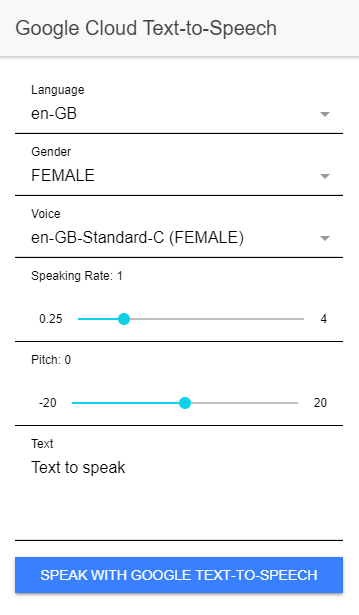
When the page loads, the application calls loadVoices(), fetches the supported voices from the backend, and derives sensible defaults from the live response instead of relying on a hardcoded voice name.
  private async loadVoices(): Promise<void> {
    const response = await fetch(`${environment.SERVER_URL}/voices`);
    this.voicesResponse = await response.json();
    this.languages = this.voicesResponse
      .map((v) => v.language)
      .filter(this.onlyUnique)
      .sort();
    this.genders = this.voicesResponse
      .map((v) => v.gender)
      .filter(this.onlyUnique)
      .sort();

    this.selectedLanguage =
      this.languages.find((language) => language.startsWith('en-')) ?? this.languages[0] ?? null;
    this.selectedGender = this.genders.includes('FEMALE') ? 'FEMALE' : (this.genders[0] ?? null);
    this.text = 'Text to speak';
    this.updateFilteredVoices();
    this.changeDetectorRef.markForCheck();
  }
When the user clicks "Speak with Google Text-to-Speech," the speakWithGoogle() method serializes the selected options as JSON, posts them to the backend, and waits for the generated MP3.
  async speakWithGoogle(): Promise<void> {
    if (this.selectedLanguage === null || this.selectedVoice === null) {
      return Promise.reject('no language or voice selected');
    }

    const requestBody: SpeakRequest = {
      language: this.selectedLanguage,
      voice: this.selectedVoice,
      text: this.text,
      pitch: this.pitch,
      speakingRate: this.speakingRate,
    };

    const loadingElement = await this.loadingController.create({
      message: 'Generating mp3...',
      spinner: 'crescent',
    });
    await loadingElement.present();

    let mp3Blob: Blob | null = null;
    try {
      const response = await fetch(`${environment.SERVER_URL}/speak`, {
        body: JSON.stringify(requestBody),
        headers: {
          'Content-Type': 'application/json',
        },
        method: 'POST',
      });
      if (!response.ok) {
        throw new Error(`Text-to-Speech request failed with status ${response.status}`);
      }
      mp3Blob = await response.blob();
    } finally {
      await loadingElement.dismiss();
    }

    if (mp3Blob !== null) {
      const audioUrl = URL.createObjectURL(mp3Blob);
      const audio = new Audio(audioUrl);
      audio.addEventListener('ended', () => URL.revokeObjectURL(audioUrl), { once: true });
      audio.addEventListener('error', () => URL.revokeObjectURL(audioUrl), { once: true });
      await audio.play();
    }
  }
The browser receives the MP3 as a Blob, creates an object URL, and plays it with the standard Audio element API.
This is all you need. Start the Spring Boot server, start the Angular client, and then you can experiment with the different input parameters.
To run the sample locally:
- Set
GOOGLE_APPLICATION_CREDENTIALSto the path of your service account JSON file. - Start the server with
./mvnw spring-boot:runintext2speech/server. - Install the client dependencies with
npm installintext2speech/client. - Start the client with
npm start.
You can find the complete source code for this example on GitHub:
https://github.com/ralscha/blog/tree/master/text2speech