Google Fonts is a popular collection of fonts you can use on your web pages and web applications. The fonts are free of charge and straightforward to integrate. In this tutorial, we look at two ways to use Google Fonts in an Ionic application.
Although I use Ionic as the example, the framework does not matter much. The integration works with any client-side JavaScript framework. You only need to adjust the style rules and paths to match your project setup.
Link to Google Fonts 
The first example shows how to integrate fonts directly from the Google Fonts service.
I'm starting with a new blank Ionic application.
ionic start myapp blank
Go to the Google Fonts website and select the font or fonts you want to use in your project.
For this example, I chose "Indie Flower". The website gives you the code and a short description of how to integrate the selected font.
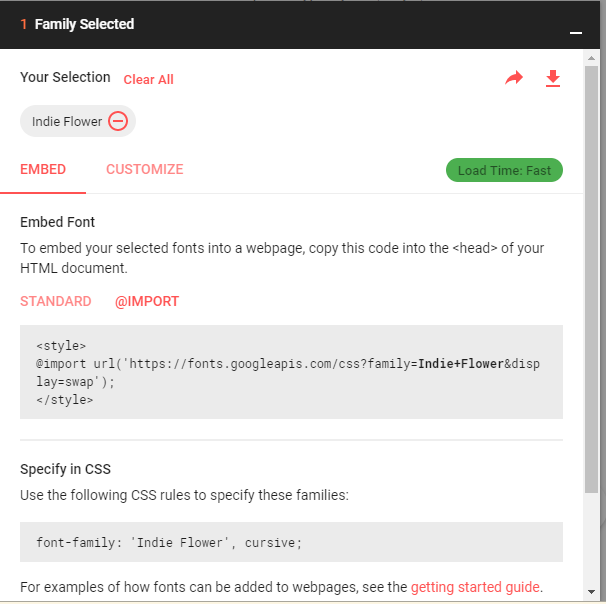
If you start a new Angular or Ionic application today, prefer a regular <link> element in src/index.html over an @import in SCSS. The browser can discover the stylesheet earlier, and you avoid the extra indirection of CSS imports.
<link rel="preconnect" href="https://fonts.googleapis.com">
<link rel="preconnect" href="https://fonts.gstatic.com" crossorigin>
<link href="https://fonts.googleapis.com/css2?family=Indie+Flower&display=swap" rel="stylesheet">
With the stylesheet link in place, you can use the font like any other font. For this example, I want to change the font for the whole application, so I assign a new value to the --ion-font-family CSS custom property inside the :root selector in src/variables.scss.
:root {
  --ion-font-family: 'Indie Flower', cursive;
}
The font for the whole application is now set to "Indie Flower".

Self-host fonts with Fontsource 
Loading fonts from Google Fonts works well, but it does create a runtime dependency on an external service. Your application still works if the font cannot be downloaded, but the fallback font changes the look of the UI.
Another consideration is privacy and network traffic. Each visitor has to contact Google Fonts unless the required files are already cached.
If you want to avoid those requests, self-hosting is an option. You can download the font files and serve them from your own server. The Fontsource project makes it easy to self-host Google Fonts in a web application.
For this example, I want to use two fonts, "Open Sans" and "Fresca".
npm install @fontsource/open-sans @fontsource/fresca
Next, import only the font files you actually use in src/styles.scss.
@import '@fontsource/open-sans/400.css';
@import '@fontsource/fresca/400.css';
Then I make "Open Sans" the default font for the whole application by setting the CSS custom property --ion-font-family in src/variables.scss.
:root {
  --ion-font-family: 'Open Sans', sans-serif;
}
The other font, "Fresca", is used only for one paragraph on the home page. For that, I create a CSS rule.
.fresca {
  font-family: 'Fresca', sans-serif;
}
Then I assign that class to the HTML element.
  <p class="fresca">
    Orci ac auctor augue mauris augue neque gravida. Sit amet nisl purus in mollis nunc. Laoreet sit
    amet cursus sit amet. Blandit aliquam etiam erat velit. Viverra justo nec ultrices dui sapien
    eget mi proin sed. Urna nunc id cursus metus aliquam eleifend mi. Amet mattis vulputate enim
    nulla aliquet porttitor lacus luctus. Tellus mauris a diam maecenas sed. Cras sed felis eget
    velit aliquet. Fames ac turpis egestas integer eget. Varius vel pharetra vel turpis nunc. Elit
    sed vulputate mi sit amet mauris commodo.
  </p>
This setup gives me the following result.
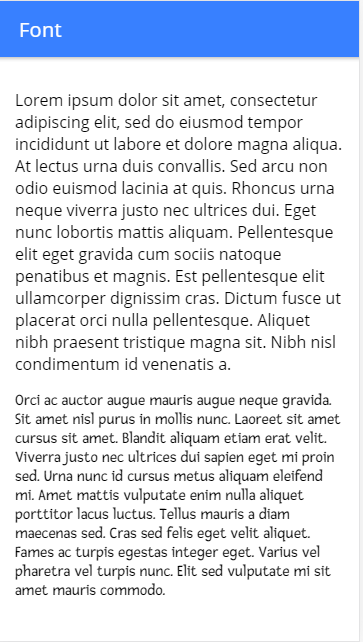
All fonts are now served by your application build, and your users no longer have to fetch them from Google at runtime.
Self-hosting still has a trade-off. If you build multiple applications that all ship the same self-hosted font, the browser caches them per origin, so each site still serves its own copy. With a shared hosted font service, a browser may already have the same font cached from another site.
If you prefer to manage the files yourself instead of using npm packages, Google Fonts now also documents a manual self-hosting workflow: https://fonts.google.com/knowledge/using_type/self_hosting_web_fonts
This concludes this tutorial about integrating Google Fonts into your project. You can find the updated source code on GitHub: https://github.com/ralscha/blog2019/tree/master/googlefont