When an application needs to upload a file to a server, it usually sends that file in an HTTP request. The file is either sent as the request body or as a multipart form-data parameter. In both cases, the upload is typically handled as one transfer, and the server receives it as a whole.
That makes uploads an all-or-nothing operation by default. You send the file in one piece and hope the connection stays up for the entire transfer. If the application loses the connection, it has to start again from the beginning.
A better approach is to split the file into multiple pieces, or chunks, on the client and upload them one by one. If the connection breaks, the client can resume from the last successfully uploaded chunk instead of retransmitting everything.
In this blog post, I use tus.io to implement that pattern. tus is a protocol for reliable, resumable uploads over HTTP, and it has client and server implementations for multiple programming languages.
The protocol specification is available here: https://tus.io/protocols/resumable-upload.html
The tus project maintains official clients for JavaScript and Java, and the community maintains additional clients and servers for other platforms.
You can find the full implementation list here: https://tus.io/implementations.html
JavaScript Client 
This example is written in TypeScript and Ionic/Angular. The current version uses the browser's built-in MediaRecorder API for video capture, so it does not need an extra recording library.
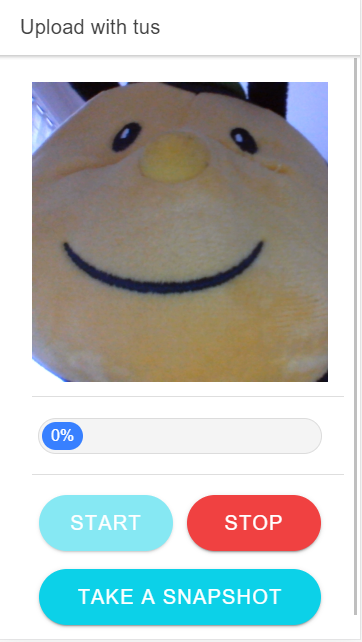
Each time the user taps the Take a Snapshot button, the application captures the current video frame as a JPEG and uploads it with tus. When the user taps Stop, the application stops recording and uploads the recorded WebM video to the Spring Boot server.
The progress bar in the example is a small local component that is part of the demo.
You install the tus JavaScript client like any other library with npm install.
npm install tus-js-client
Then import it with the following statement.
import {Upload} from 'tus-js-client';
In this section, I focus on the method that uploads the files to the server. If you are interested in the complete source code, you can find it on GitHub: https://github.com/ralscha/blog2019/tree/master/uploadtus/client
The uploadFile() method expects a File object. It creates an Upload instance, configures retries and metadata, updates the progress bar, and checks for previously interrupted uploads before calling start().
  private async uploadFile(file: File): Promise<void> {
    this.uploadProgress.set(0);

    const upload = new Upload(file, {
      endpoint: `${environment.serverURL}/upload`,
      retryDelays: [0, 3000, 6000, 12000, 24000],
      chunkSize: 20000,
      metadata: {
        filename: file.name,
        filetype: file.type,
      },
      onError: async (error) => {
        await this.presentToast('Upload failed: ' + error);
      },
      onProgress: (bytesUploaded, bytesTotal) => {
        this.uploadProgress.set(Math.floor((bytesUploaded / bytesTotal) * 100));
      },
      onSuccess: async () => {
        this.uploadProgress.set(100);
        await this.presentToast('Upload successful');
      },
    });

    try {
      const previousUploads = await upload.findPreviousUploads();
      if (previousUploads.length > 0) {
        upload.resumeFromPreviousUpload(previousUploads[0]);
      }
      upload.start();
    } catch (error) {
      await this.presentToast('Could not initialize the upload');
      console.error('Could not initialize upload', error);
    }
  }
The endpoint option specifies the URL of the tus back end. chunkSize specifies the size of each individual chunk in bytes. The files in this example are small, so I use a tiny chunk size to make the chunking behavior easier to observe.
retryDelays is an array specifying how many milliseconds the library should wait before retrying an interrupted transfer.
The length of the array also determines the number of retry attempts. With the configuration above, the library waits 0 milliseconds after the first failed attempt, then 3, 6, 12, and finally 24 seconds before giving up.
The metadata object allows the application to send additional information to the server. In this example, the server uses the original filename when it stores the completed file.
The lifecycle hooks onError, onProgress, and onSuccess are called when an error occurs, while bytes are being uploaded, and when the upload finishes successfully.
We use these hooks to display toast messages and update the progress bar.
The current sample also uses findPreviousUploads() and resumeFromPreviousUpload() so the client can explicitly continue an earlier interrupted upload when the browser has stored resume information.
This example shows only a few of the available configuration options. You can find the full API documentation on GitHub.
If you want a higher-level browser upload UI today, Uppy is the main recommendation on the tus implementations page. I am using tus-js-client directly here because it keeps the protocol interaction visible and the example small.
Java Server (Spring Boot) 
The server is a Spring Boot application created with https://start.spring.io and the Web dependency.
There is still no official tus server implementation for Java, but there is a solid community-maintained option: https://github.com/tomdesair/tus-java-server
We add that library with the following dependency coordinates.
    <dependency>
      <groupId>me.desair.tus</groupId>
      <artifactId>tus-java-server</artifactId>
      <version>1.0.0-3.3</version>
    </dependency>
Whenever you write a Spring Boot application that handles file uploads, verify the following two multipart size settings explicitly.
spring.servlet.multipart.max-file-size=50KB
spring.servlet.multipart.max-request-size=50KB
These properties specify the maximum size of an HTTP request and the maximum size of a file inside such a request. They should be greater than or equal to the chunk size used by the client. Because the JavaScript tus client in this example sends one chunk per HTTP request, setting both values to the same size is fine.
Next, we need to specify a directory where the Java tus library can store uploaded chunks. I externalized these settings with a @ConfigurationProperties POJO AppProperties and configure the paths in src/main/resources/application.properties.
app.tus-upload-directory=./uploads/tus
app.app-upload-directory=./uploads/app
The tus-upload-directory is mandatory and is managed internally by the tus library. After an upload finishes, the application has to extract the completed file from that directory. For demo purposes, I then copy the file into another directory specified by app-upload-directory. In a real application, you would more likely store the file in object storage, a database, or another downstream service.
The next step is creating a TusFileUploadService instance. This class handles the upload process and can be a singleton.
We therefore configure it as a Spring-managed bean. The service needs the storage path and the upload URI. In the updated sample, I also configure a 24-hour upload expiration period so the scheduled cleanup task can remove abandoned uploads.
  @Bean
  TusFileUploadService tusFileUploadService(AppProperties appProperties) {
    return new TusFileUploadService()
        .withStoragePath(appProperties.getTusUploadDirectory())
        .withUploadExpirationPeriod(86_400_000L)
        .withUploadUri("/upload");
  }
Next, we create the UploadController that is responsible for handling the tus upload requests from the JavaScript client.
If you need to enable CORS (Cross-Origin Resource Sharing), you have to expose the Location and Upload-Offset HTTP headers.
The JavaScript client needs access to these headers and cannot read them in a CORS environment unless the server exposes them explicitly.
@Controller
@CrossOrigin(exposedHeaders = { "Location", "Upload-Offset" })
In the constructor, we are going to inject the TusFileUploadService and create the app upload directory.
You don't have to create the tus upload directory. The tus library automatically creates the directory if it does not exist.
  public UploadController(TusFileUploadService tusFileUploadService,
      AppProperties appProperties) {
    this.tusFileUploadService = tusFileUploadService;

    this.uploadDirectory = Paths.get(appProperties.getAppUploadDirectory());
    try {
      Files.createDirectories(this.uploadDirectory);
    }
    catch (IOException e) {
      Application.logger.error("create upload directory", e);
    }

    this.tusUploadDirectory = Paths.get(appProperties.getTusUploadDirectory());
  }
Next, we implement an HTTP endpoint that listens for upload requests. Make sure that the endpoint handles not only /upload but also nested URLs under /upload/....
The method also has to accept POST, PATCH, HEAD, DELETE, and GET requests.
  @RequestMapping(value = { "/upload", "/upload/**" }, method = { RequestMethod.POST,
      RequestMethod.PATCH, RequestMethod.HEAD, RequestMethod.DELETE, RequestMethod.GET })
  public void upload(HttpServletRequest servletRequest,
      HttpServletResponse servletResponse) throws IOException {
A user of the library only needs to call the process() method of TusFileUploadService and pass the request and response objects. The tus library takes care of the protocol handling.
We want to move completed files from the tus upload directory into our app upload directory, so after process() returns we need to check whether the upload has finished. To do that, we retrieve the UploadInfo object. TusFileUploadService stores uploads under a key based on the request URI, and getUploadInfo() returns the corresponding UploadInfo instance.
The UploadInfo class provides the isUploadInProgress() method, which returns false after the final chunk has been uploaded.
With tusFileUploadService.getUploadedBytes(), we can open a stream to the uploaded file. Like getUploadInfo(), this method expects the upload key, which in this example is the request URI.
The application then copies the file from the tus directory to the app upload directory and stores it under the original filename that the JavaScript client sent in the metadata section.
  public void upload(HttpServletRequest servletRequest,
      HttpServletResponse servletResponse) throws IOException {
    this.tusFileUploadService.process(servletRequest, servletResponse);

    String uploadURI = servletRequest.getRequestURI();

    UploadInfo uploadInfo = null;
    try {
      uploadInfo = this.tusFileUploadService.getUploadInfo(uploadURI);
    }
    catch (IOException | TusException e) {
      Application.logger.error("get upload info", e);
    }

    if (uploadInfo != null && !uploadInfo.isUploadInProgress()) {
      try (InputStream is = this.tusFileUploadService.getUploadedBytes(uploadURI)) {
        Path output = this.uploadDirectory.resolve(uploadInfo.getFileName());
        Files.copy(is, output, StandardCopyOption.REPLACE_EXISTING);
      }
      catch (IOException | TusException e) {
        Application.logger.error("get uploaded bytes", e);
      }

      try {
        this.tusFileUploadService.deleteUpload(uploadURI);
      }
      catch (IOException | TusException e) {
        Application.logger.error("delete upload", e);
      }
    }
Lastly, it is essential that the application calls tusFileUploadService.deleteUpload() after the file has been processed.
This method call signals the tus library to delete the uploaded chunks from its upload directory.
If you skip this step, the temporary files remain on disk.
Cleanup 
It is also a good idea to clean up the tus upload directory periodically to remove expired uploads and stale locks. These are leftovers from uploads that started but never finished.
In a Spring application, this is easy to implement with a @Scheduled method. This sample runs cleanup() every 24 hours. Because the TusFileUploadService bean is configured with a 24-hour upload expiration period, the cleanup task can remove stale uploads after that interval.
The method first checks whether the tus upload directory exists. It is possible that the directory does not exist yet because nobody has uploaded a file. The actual cleanup work is then delegated to TusFileUploadService.cleanup().
  @Scheduled(fixedDelayString = "PT24H")
  void cleanup() {
    if (Files.isDirectory(this.tusUploadDirectory)) {
      try {
        this.tusFileUploadService.cleanup();
      }
      catch (IOException e) {
        Application.logger.error("error during cleanup", e);
      }
    }
  }
Remember to add @EnableScheduling on a configuration class. Scheduling is not enabled by default in a Spring Boot application.
@EnableScheduling
Java Client 
As mentioned at the beginning, there are many implementations of the tus.io protocol. There is also an official Java client implementation. In this section, I show a Java program that sends a file to the same Spring Boot back end. The server from the previous section can be reused without any changes.
To use the tus client, add the following dependency to your project.
    <dependency>
      <groupId>io.tus.java.client</groupId>
      <artifactId>tus-java-client</artifactId>
      <version>0.5.1</version>
    </dependency>
The first part of the Java client is not tus-specific; it downloads a test file from picsum.photos with the Java HTTP client.
    var httpClient = HttpClient.newBuilder().followRedirects(Redirect.NORMAL).build();

    // Download test file
    Path testFile = Paths.get("test.jpg");
    if (!Files.exists(testFile)) {
      var request = HttpRequest.newBuilder()
          .uri(URI.create("https://picsum.photos/id/970/2000/2000.jpg")).build();
      httpClient.send(request, BodyHandlers.ofFile(testFile));
    }
Next, we need to create an instance of TusClient. The TusClient instance can be used for multiple uploads.
We need to specify the address of the tus server, and we enable the resume feature. The library only provides one implementation of the TusURLStore interface: TusURLMemoryStore.
This implementation stores all information about an upload in memory, which is fine for a small demo.
    var client = new TusClient();
    client.setUploadCreationURL(URI.create("http://localhost:8080/upload").toURL());
    client.enableResuming(new TusURLMemoryStore());
Then we instantiate TusUpload with the file we want to upload.
TusUpload upload = new TusUpload(testFile.toFile());
This class only describes the file to be uploaded. It does not perform the upload itself.
Next, we need to implement a TusExecutor. This is an abstract class, and we need to implement the makeAttempt() method.
First, we call resumeOrCreateUpload() to create a TusUploader instance.
This class performs the actual upload and also knows which chunks have already been transferred successfully.
The file in this example is not very large, so I set the chunk size to a very low value (1024 bytes) to make the chunking visible.
If you don't specify a chunk size, TusUploader uses a default of 2MB.
    var executor = new TusExecutor() {

      @Override
      protected void makeAttempt() throws ProtocolException, IOException {
        TusUploader uploader = client.resumeOrCreateUpload(upload);
        uploader.setChunkSize(1024);

        do {
          long totalBytes = upload.getSize();
          long bytesUploaded = uploader.getOffset();
          double progress = (double) bytesUploaded / totalBytes * 100;

          System.out.printf("Upload at %6.2f %%.\n", progress);
        }
        while (uploader.uploadChunk() > -1);

        uploader.finish();
      }

    };
The actual upload consists of a loop that repeatedly calls uploadChunk(). This transfers one chunk per iteration. The method returns the number of transferred bytes and -1 when there is nothing left to upload. After the loop finishes, call finish() to close the upload cleanly.
TusExecutor is a class that catches all exceptions thrown by makeAttempt() and retries calling the method.
You can also specify the delays at which the class will issue a retry if makeAttempt() throws an exception.
Here is an example that sets the delays to 2, 4, and 8 seconds.
executor.setDelays(new int[]{2, 4, 8});
For this example, we don't set custom delays and therefore use the defaults of 500 ms, 1, 2, and 3 seconds.
The number of elements in the delay array also specifies the number of retry attempts. By default, it tries to call makeAttempt() four times, and if every call throws an exception, TusExecutor gives up.
To start the upload process, call makeAttempts(), which internally invokes makeAttempt().
boolean success = executor.makeAttempts();
The method returns true when the file was uploaded successfully or false if the thread was interrupted, for example with Thread.currentThread().interrupt().
It throws ProtocolException or IOException when the upload fails.
To test the application, first start the Spring Boot application and then run the client. If everything works, you should see test.jpg in ./uploads/app.
The complete source code of the JavaScript and Java client and the Spring Boot server is hosted on GitHub:
https://github.com/ralscha/blog2019/tree/master/uploadtus