While writing applications that send email is usually straightforward, testing them can be tricky during development and automated tests. First, your application has to connect to an SMTP server. Then, you have to make sure that you do not accidentally send thousands of emails to real customers while developing locally. Workarounds such as replacing all email addresses in the database with a test address, or adding code that rewrites recipients when the application runs in development, may work, but they are easy to forget. Rewriting recipients also creates another problem: you can no longer verify that an email would have gone to the correct recipient.
Another issue appears when you do not have access to the real SMTP server. Maybe it is only reachable from the office network, or you want to work somewhere without network access at all, for example on a plane.
The solution to all of these problems is to run a catch-all SMTP server locally on your development machine. These are small applications that implement the SMTP protocol and listen for incoming mail. They accept messages for any recipient address, but they do not relay them. Instead, they store the messages locally, either in memory or on disk, and usually provide a web UI or an API so you can inspect the inbox.
With that setup in place, you can send email to the real recipients defined in your database without changing application code or production data. It also works without external network access. A local catch-all SMTP server is still only a safeguard, though, so you must continue to point your application to the correct SMTP host in the active configuration.
In this blog post, we look at a few catch-all SMTP server applications. All of them are free, and all run on multiple platforms.
Email Demo 
First, we need a simple application that sends email. For this post, I use a small Spring Boot application. Add the spring-boot-starter-mail dependency to the project. It pulls in the required mail libraries automatically.
    <dependency>
      <groupId>org.springframework.boot</groupId>
      <artifactId>spring-boot-starter-mail</artifactId>
    </dependency>
In a Spring-managed bean, we inject Spring's JavaMailSender, which is responsible for creating and sending email messages.
@Service
public class EmailService {

  private final JavaMailSender mailSender;

  private final String defaultSender;

  public EmailService(JavaMailSender mailSender, AppProperties appProperties) {
    this.mailSender = mailSender;
    this.defaultSender = appProperties.getDefaultEmailSender();
  }

  public void sendEmail() throws MessagingException {
    MimeMessage message = this.mailSender.createMimeMessage();
    MimeMessageHelper helper = new MimeMessageHelper(message);
    helper.setFrom(this.defaultSender);
    helper.setTo("developer@test.com");
    helper.setText("<h1>Hello World</h1>", true);
    helper.setSubject("Test Email");

    this.mailSender.send(message);
  }
The demo application also exposes a GET endpoint (/send) that calls the sendEmail() method. You can trigger email delivery by opening http://localhost:8080/send in a browser or by sending a request with curl or any other HTTP client.
@RestController
public class EmailController {

  private final EmailService emailService;

  public EmailController(EmailService emailService) {
    this.emailService = emailService;
  }

  @GetMapping("/send")
  public void send() throws MessagingException {
    this.emailService.sendEmail();
  }
Lastly, configure the SMTP server address and port in application.properties. For the automated tests in this example, the test configuration points to the embedded GreenMail SMTP server.
spring.mail.host=localhost
spring.mail.port=2525
app.default-email-sender=no-reply@test.com
Mailpit 
If you are choosing a local catch-all SMTP server today, Mailpit is one of the best starting points. It is actively maintained, runs as a single binary, provides a modern web UI, and exposes an HTTP API that is useful for automation.
Download the latest binary from the release page and start it with:
mailpit
By default, Mailpit listens on port 1025 for SMTP traffic and on port 8025 for the web UI and API.
Alternatively, you can start it as a Docker container.
docker run -d --name mailpit -p 8025:8025 -p 1025:1025 axllent/mailpit
Open http://localhost:8025 in a browser to inspect emails. Mailpit also provides a REST API, supports POP3, and includes features such as search, link checking, and HTML compatibility checks. See the documentation for all configuration options.
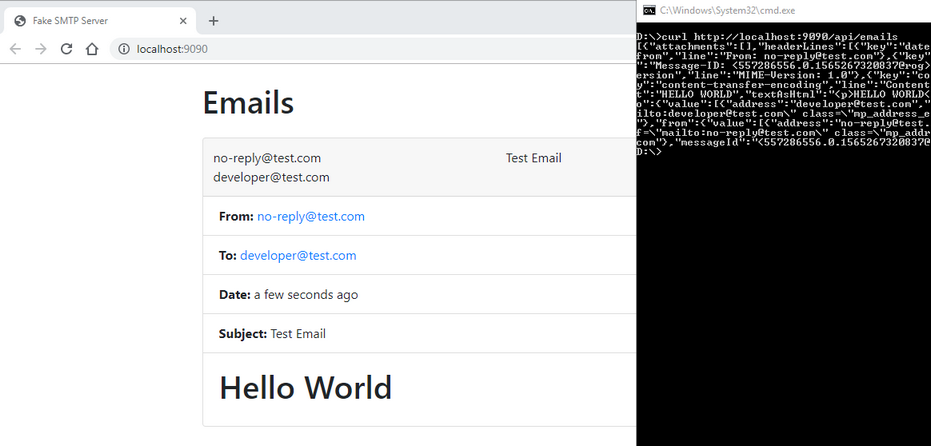
fake-smtp-server 
This project is written in Java and uses Spring Boot to start both an SMTP server and a web application.
To install it, go to the release page and download the latest version.
Start the server with:
java -jar fake-smtp-server-<version>.jar
The current defaults are port 8025 for SMTP traffic and port 8080 for the web UI.
The application is configurable through application.yaml, environment variables, or standard Spring Boot external configuration. It also offers a REST API and Swagger UI. See the project page for details.
Inbucket 
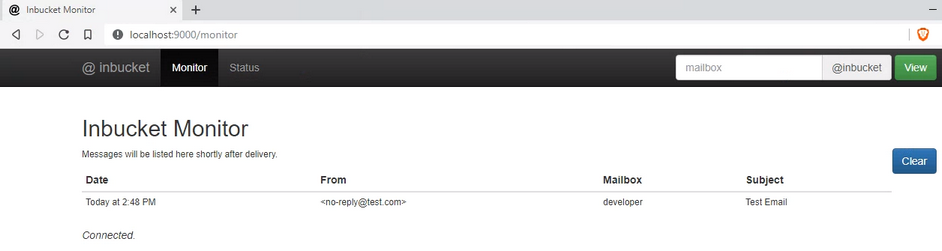
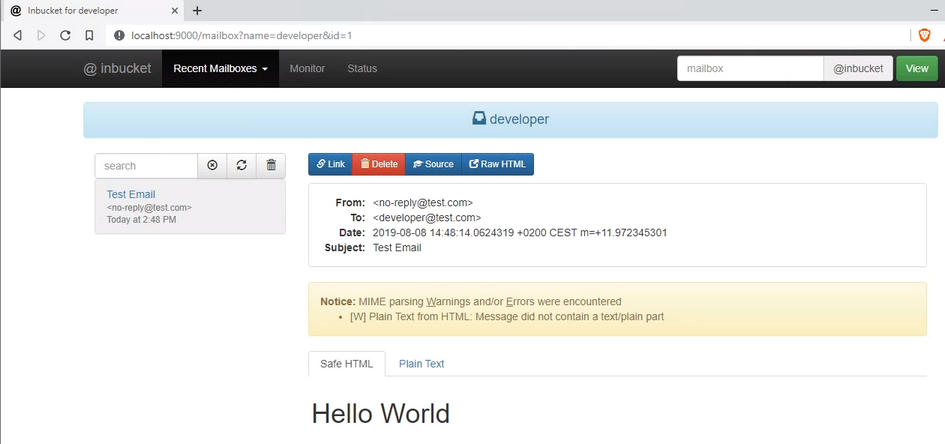
Inbucket is written in Go and Elm. Download the latest version from the release page. Binaries are available for macOS, Windows, Linux, and FreeBSD.
Start the server with the inbucket binary. By default, Inbucket starts the SMTP server on port 2500 and the web UI on port 9000. Unlike the previous tools, Inbucket also implements POP3 and starts a POP3 server on port 1100.
Inbucket is configured via environment variables. See the configuration documentation for more information.
Alternatively, you can start Inbucket as a Docker container.
docker run -d --name inbucket -p 9000:9000 -p 2500:2500 -p 1100:1100 inbucket/inbucket
Inbucket provides both a web UI and an HTTP REST API for programmatic access. See the REST API wiki for more information.
smtp4dev 
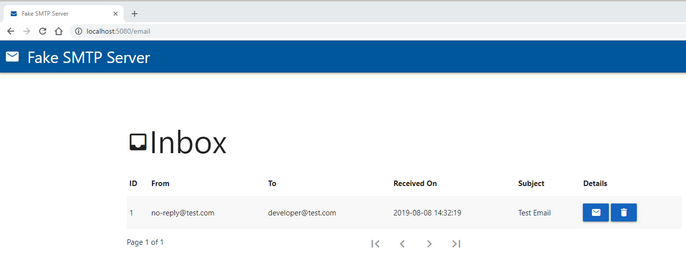
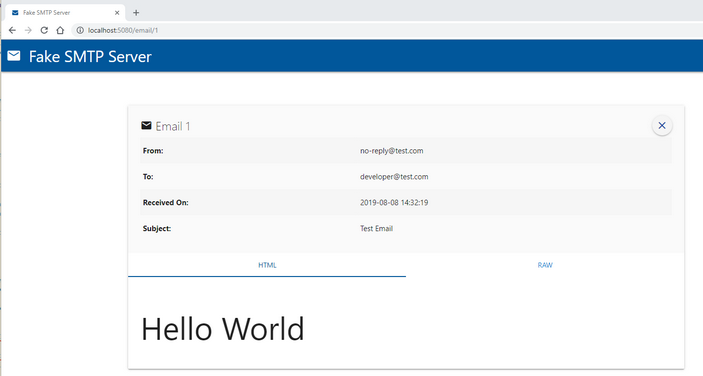
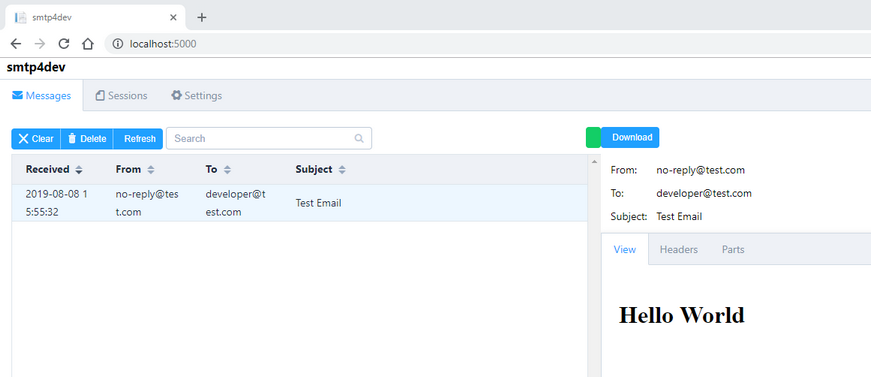
smtp4dev is written in C# and TypeScript and runs on Windows, Linux, and macOS. Recent releases are available from the release page. On Windows, installing it with Winget is often the easiest option.
To start the server from a downloaded binary, execute Rnwood.Smtp4dev.exe. By default, the application starts the SMTP server on port 25 and the HTTP server on port 5000.
Because port 25 often requires elevated privileges or conflicts with other software, changing the SMTP port to 2525 is common during local development.
Rnwood.Smtp4dev.exe --smtpport 2525
smtp4dev is also available as a Docker container.
docker run -p 3000:80 -p 2525:25 rnwood/smtp4dev
GreenMail 
GreenMail is written in Java and is the only server on this list that supports SMTP, POP3, and IMAP and also integrates directly into JUnit tests.
Go to the download page and download the standalone version.
To start all test services, run:
java -Dgreenmail.setup.test.all -jar greenmail-standalone-<version>.jar
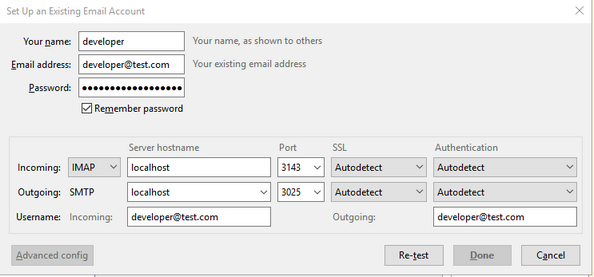
The default test ports are: SMTP = 3025, SMTPS = 3465, POP3 = 3110, POP3S = 3995, IMAP = 3143, IMAPS = 3993, and the standalone API runs on port 8080. You can change the ports and the enabled services with command-line options or system properties. GreenMail prints all supported options when you start it without arguments.
java -jar greenmail-standalone-<version>.jar
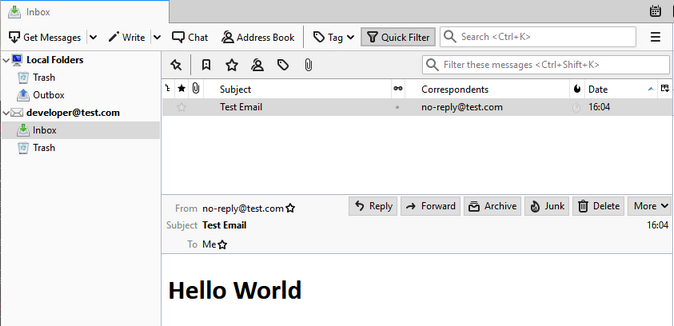
GreenMail automatically creates user accounts when it receives email. Our demo application sends mail to developer@test.com, so GreenMail creates a mailbox for that address.
Older GreenMail setups were typically inspected through POP3 or IMAP with a regular mail client. Current standalone releases also provide a REST API and an OpenAPI UI on port 8080, so you can inspect messages without attaching an external mail client.
GreenMail supports multiple deployment models, including a standalone JVM process, a Docker image, and a web application.
docker pull greenmail/standalone:2.1.8
docker run -t -i -p 3025:3025 -p 3110:3110 -p 3143:3143 -p 3465:3465 -p 3993:3993 -p 3995:3995 -p 8080:8080 greenmail/standalone:2.1.8
Unit tests 
All the applications above fit well into a development workflow: start a server manually, send emails from your application, and inspect the results in a UI. For automated tests, we need something that is reproducible and starts automatically.
For Java applications, GreenMail provides a straightforward solution. Add GreenMail's JUnit 5 support to the test classpath, and then start the embedded SMTP server directly from the test.
    <dependency>
      <groupId>com.icegreen</groupId>
      <artifactId>greenmail-junit5</artifactId>
      <version>2.1.11</version>
      <scope>test</scope>
    </dependency>
In the example project, the test registers GreenMail with JUnit 5 by using GreenMailExtension. The sample keeps the SMTP port fixed at 2525 so that it matches the values in src/test/resources/application.properties. With withPerMethodLifecycle(false), GreenMail starts once for the test class instead of once per test method.
After each test, purgeEmailFromAllMailboxes() removes all received messages so every test starts with a clean inbox.
  static GreenMailExtension greenMail = new GreenMailExtension(
      new ServerSetup(2525, "127.0.0.1", ServerSetup.PROTOCOL_SMTP))
      .withPerMethodLifecycle(false);

  @AfterEach
  public void cleanup() throws FolderException {
    greenMail.purgeEmailFromAllMailboxes();
  }
Inside the @Test method, we first call our service, which sends an email. Because sending can take a short moment, the test waits for the message with waitForIncomingEmail(). The default timeout is 5 seconds. If the message arrives in time, we inspect it via getReceivedMessages().
This method returns all received messages as an array of MimeMessage instances. A MimeMessage contains the headers and the message body.
  void testSendEmail() throws MessagingException, IOException {
    this.emailService.sendEmail();

    assertThat(greenMail.waitForIncomingEmail(1)).isTrue();

    MimeMessage testMessage = greenMail.getReceivedMessages()[0];
    assertThat(testMessage.getSubject()).isEqualTo("Test Email");
    assertThat(testMessage.getRecipients(RecipientType.TO)[0].toString())
      .isEqualTo("developer@test.com");
    assertThat(testMessage.getFrom()[0].toString())
      .isEqualTo(this.appProperties.getDefaultEmailSender());

    String emailContent = (String) testMessage.getContent();
    assertThat(emailContent.replaceAll("\\r\\n|\\r|\\n", ""))
      .isEqualTo("<h1>Hello World</h1>");
  }
An alternative to getReceivedMessages() is getReceivedMessagesForDomain(), which only returns messages for a particular domain.
greenMail.getReceivedMessagesForDomain("test.com")
As mentioned earlier, waitForIncomingEmail() waits 5 seconds by default. If that is not long enough, use the overloaded method and provide a custom timeout.
// 10 seconds timeout
greenMail.waitForIncomingEmail(10_000, 1);
That concludes this overview of catch-all SMTP servers. If you are starting from scratch today, I would look first at Mailpit or smtp4dev for local manual testing, and at GreenMail when you need Java integration tests with an embedded server.