Playwright is an end-to-end test framework for web apps. It bundles a test runner, assertions, isolation, parallelization, and rich tooling. Playwright supports Chromium, WebKit, and Firefox, locally or in CI, headless or headed.
In this blog post, I want to show you a different use case for Playwright: PDF generation. Browsers have the capability to export rendered HTML to PDF, and you can access this functionality through Playwright's API. We can leverage that to build a simple workflow that generates PDFs from scratch using HTML and CSS.
Setup Playwright 
Because Playwright relies on a browser, it is not always easy to set up, for example in a CI environment. Fortunately, the Playwright team provides a Docker image with everything pre-installed.
To create a simple PDF generation service, we can use the Playwright Docker image as a base and add a small Node.js server that listens for incoming HTML content, renders it to PDF using Playwright, and returns the PDF bytes in the response.
You can find the full implementation of this Node.js server in the GitHub repository for this blog post.
The service listens on port 3000 and exposes a single endpoint POST /pdf that accepts raw HTML in the request body. When a request is received, the server uses Playwright to create a new browser context, load the HTML content, wait for network activity to stabilize, and then generate a PDF with specific options for page size, margins, and background rendering.
  const browser = await browserPromise;
  const context = await browser.newContext();
  const page = await context.newPage();

  await page.setContent(html, { waitUntil: 'networkidle' });
  const pdfBuffer = await page.pdf({
    format: 'A4',
    preferCSSPageSize: true,
    printBackground: true,
    margin: {
      top: '16mm',
      right: '12mm',
      bottom: '16mm',
      left: '12mm',
    },
  });

  await context.close();
  return pdfBuffer;
You can customize the PDF generation options in the generatePdfFromHtml function. In this example, we set preferCSSPageSize: true to allow CSS @page rules to control page size, printBackground: true to include background colors and images, and explicit margins to ensure consistent layout across different viewers.
Finally, we use the following Dockerfile to build the Playwright PDF service:
FROM mcr.microsoft.com/playwright:v1.58.2-noble

WORKDIR /app

COPY package.json ./
RUN npm install --omit=dev

COPY server.js ./

EXPOSE 3000
CMD ["npm", "start"]
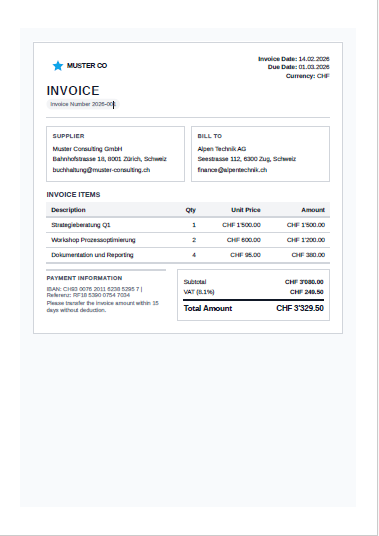
Invoice PDF example 
Let's say our task is to generate an invoice PDF from structured data. We get the data in a JSON file, and our task is to produce a nicely formatted PDF that we can send to customers.
We can leverage Go's templating capabilities to render an HTML document from the JSON data, then send that HTML to our Playwright service for PDF generation. The execution flow looks like this:
- Load invoice data from
data/invoice.json. - Render HTML from
templates/invoice.html.tmpl. - Send HTML payload to Playwright service (
POST /pdf). - Receive PDF bytes and write
invoice.pdf.
The rendering is straightforward. The Invoice struct contains the data from the JSON file, and we use html/template to render the invoice HTML in memory.
func renderInvoiceHTML(templatePath string, invoice Invoice) (string, error) {
  templateRaw, err := os.ReadFile(templatePath)
  if err != nil {
    return "", err
  }

  tmpl, err := template.New("invoice").Parse(string(templateRaw))
  if err != nil {
    return "", err
  }

  var buf bytes.Buffer
  if err := tmpl.Execute(&buf, invoice); err != nil {
    return "", err
  }

  return buf.String(), nil
}
You can find the full template here.
Start the Playwright service and run the Go CLI to generate the PDF.
The result looks like this:
Print-specific CSS features 
CSS is mainly used for styling elements on a screen, but it also has features for controlling how content is paginated and rendered in print output. In this section, we will explore some of the key CSS properties that can help you achieve better results when generating PDFs with Playwright.
@page for paper size and margins 
@page defines the page box in paged media. Combined with Playwright's preferCSSPageSize, this is the authoritative source for page size.
Here we set A4 size with 12mm margins:
    @page {
      size: A4;
      margin: 12mm;
    }
break-before 
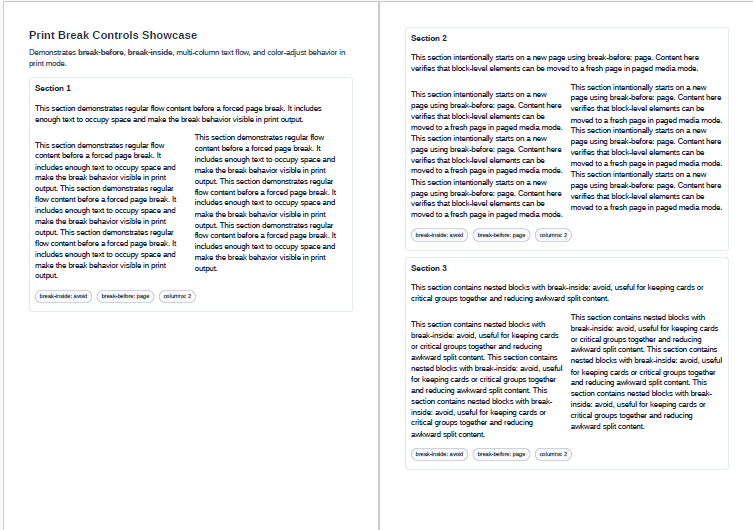
This CSS property allows you to control where page breaks occur. By applying break-before: page to an element, you can ensure that it starts on a new page in the generated PDF. Other values include column for multi-column layouts and avoid to discourage breaks.
    .new-page {
      break-before: page;
      page-break-before: always;
    }
page-break-before is deprecated but still widely supported, while break-before is the modern standard.
You find more information about page breaks in the MDN documentation.
In this example, the element for section 2 has the CSS class .new-page applied to it, which forces it to start on a new page in the PDF output.
break-inside and row/card integrity 
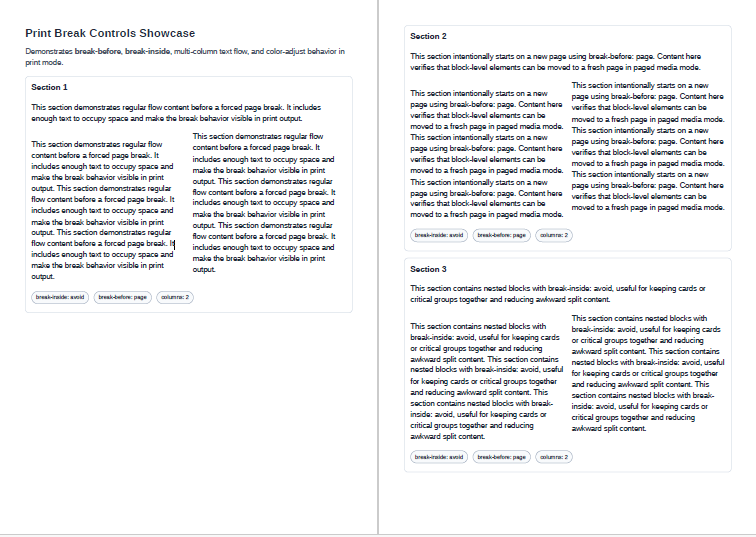
Content splitting is a problem when printing an HTML document or exporting it to PDF. You don't want important blocks of content to be split across pages. To mitigate this, you can use the break-inside property to indicate that an element should not be broken across pages. Setting break-inside: avoid on a container element tells the browser to try to keep the entire element together on the same page. This obviously only works when the content fits on a single page.
    .section {
      border: 1px solid #cbd5e1;
      border-radius: 8px;
      padding: 12px;
      margin-bottom: 14px;
      break-inside: avoid;
      page-break-inside: avoid;
    }
In this example, all sections use the break-inside: avoid property, which helps keep the content of each section together on the same page. You can see that section 2 had no room left on page 1, so it is moved in its entirety to page 2.
Learn more about the break-inside property in the MDN documentation.
Repeating table headers/footers 
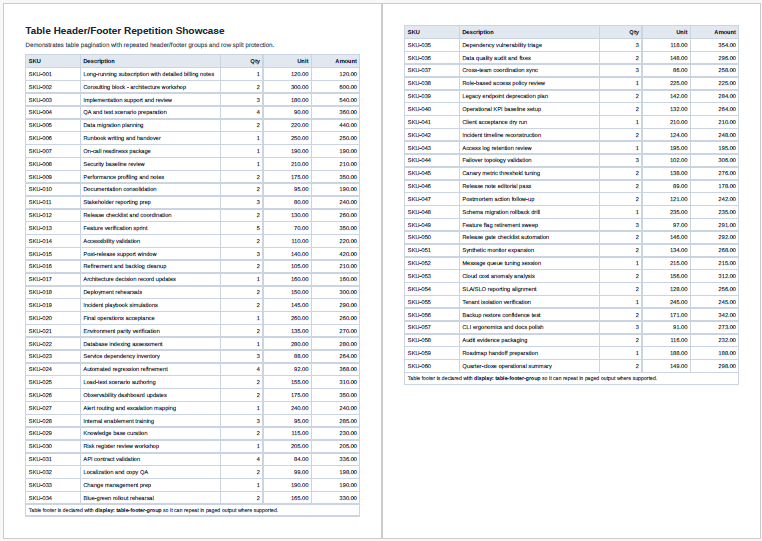
When you have tables that span multiple pages, you often want to repeat the header row on each page. We can use CSS to specify that the thead should be repeated on each page. With the display property set to table-header-group, the browser will automatically repeat the header row on each page of the PDF. The same can be done for footers with table-footer-group.
    thead {
      display: table-header-group;
    }

    tfoot {
      display: table-footer-group;
    }
In the PDF output, you can see that the header row is repeated at the top of each page and the footer is repeated at the bottom of each page.
Color fidelity with print-color-adjust 
Browsers and print engines may optimize away backgrounds/colors to save ink unless instructed otherwise.
print-color-adjust: exact;
print-color-adjust controls how much freedom the user agent has to alter colors and images for the output device.
economy(default): the browser may optimize output for readability and cost (for example dropping background images/colors, or changing low-contrast text/background combinations).exact: indicates that the element was intentionally designed and should be preserved as authored whenever possible.
This is particularly useful for UI-like PDF elements such as status chips, zebra rows, and shaded cards where removing backgrounds can hurt readability.
You can see the effect of this property in the badge chips.

You find more information about print color adjustments in the MDN documentation.
Multi-column text with columns 
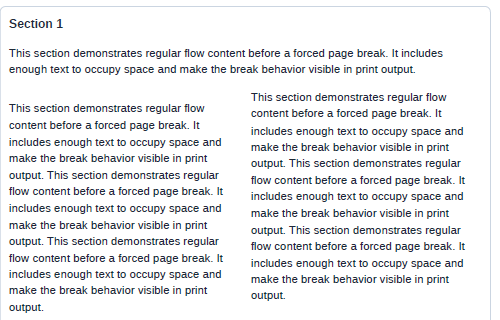
With the CSS property columns you can create multi-column layouts.
The following example demonstrates how to split a section of text into two columns. The column-gap property specifies the gap between the columns, and margin-top adds some spacing above the multi-column section.
    .split-columns {
      columns: 2;
      column-gap: 16px;
      margin-top: 12px;
    }
      <div class="split-columns">
        <p>{{ $s.Text }} {{ $s.Text }} {{ $s.Text }}</p>
        <p>{{ $s.Text }} {{ $s.Text }} {{ $s.Text }}</p>
      </div>
Wrap-up 
While Playwright is primarily designed for browser automation and testing, it can also be a useful tool for PDF generation. By leveraging its rendering capabilities, you can create a flexible and powerful PDF generation pipeline that uses HTML and CSS. You can use all features of modern CSS to style your documents, as well as print-specific CSS properties to control the PDF output.