Angular makes it very easy to add a service worker to your application. Run the following command in an existing Angular project and you have a simple service worker setup that caches your application files and serves them from the cache for fast load times and offline support:
ng add @angular/pwa
Default update behavior 
The service worker checks for updates at application startup and downloads a new version in the background. However, the default behavior is to keep the current version running until the user either reloads the page, navigates to the application in a new tab, or closes all tabs and opens the app again. Only then is the new version activated and the user gets the latest version. This is a safe default that prevents unexpected reloads and mixed versions, but it can lead to users running stale code for a long time.
Note that the automatic update check does not happen immediately at startup. With the default configuration, Angular waits until the application is stable, which means there are no pending microtasks or macrotasks. This is to avoid interfering with the initial loading of the app and to ensure that the update check does not cause additional load on the server during startup.
registrationStrategy: 'registerWhenStable:30000',
The value after the colon is a timeout in milliseconds. If the app hasn't stabilized after that timeout, the service worker will be registered anyway. This prevents the service worker from never being registered in the case of a recurring asynchronous task that prevents the app from stabilizing.
Possible values for registrationStrategy are:
- registerWhenStable:timeout: Register as soon as the application stabilizes (no pending micro-/macro-tasks), but no later than timeout milliseconds.
- registerImmediately: Register immediately.
- registerWithDelay:timeout: Register with a delay of timeout milliseconds. For example, use registerWithDelay:5000 to register the ServiceWorker after 5 seconds. If timeout is omitted, it defaults to 0, which registers the ServiceWorker as soon as possible, but still asynchronously, once all pending micro-tasks are completed.
- An Observable factory function: A function that returns an Observable. The function will be used at runtime to obtain and subscribe to the Observable and the ServiceWorker will be registered as soon as the first value is emitted.
Regardless of the registration strategy, Angular will not activate a new version of the app until the user reloads or closes and reopens the app.
Immediate updates 
If users running old versions for too long is a problem, you can implement an immediate update flow with Angular's SwUpdate service. This allows you to detect when a new version is ready, inform the user, and reload the app on demand.
The following code snippets show you how to build such a flow.
Detect when a new version is ready 
Angular's service worker provides a service called SwUpdate that you can inject into your components and services.
readonly #swUpdate = inject(SwUpdate);
This service provides the checkForUpdate method to check for updates. This is an asynchronous method that returns a boolean indicating whether a new version was found. Internally, Angular sends a request to the server to fetch the ngsw.json manifest and compares the version hash with the local one. If they differ, it means a new version is available and Angular starts downloading it in the background. When a new version is found, the checkForUpdate() method waits until the new version is fully downloaded and ready to use, and then it resolves to true.
const updateFound = await this.#swUpdate.checkForUpdate();
For a manual update check, we can simply check the response of checkForUpdate() and inform the user if a new version is found or not. However, for Angular's automatic update check at startup, we have to listen to the versionUpdates observable of the SwUpdate service to detect when a new version is ready.
    this.#swUpdate.versionUpdates.subscribe((event) => {
      this.#handleVersionEvent(event);
    });
This observable emits lifecycle events for version discovery and installation.
VERSION_DETECTED: A new version was found and the download has started.VERSION_READY: The new version is fully downloaded and ready to use. This is the same ascheckForUpdate()resolving totrue.VERSION_INSTALLATION_FAILED: The download failed.NO_NEW_VERSION_DETECTED: No new version was found during the check. This is the same ascheckForUpdate()returningfalse.
  #handleVersionEvent(event: VersionEvent): void {
    switch (event.type) {
      case 'VERSION_DETECTED':
        console.info(`Downloading new app version: ${event.version.hash}`);
        this.#statusMessage.set('A new version was detected and is being downloaded.');
        break;
      case 'VERSION_READY':
        console.info(`Current app version: ${event.currentVersion.hash}`);
        console.info(`New app version ready for use: ${event.latestVersion.hash}`);
        this.#updateAvailable.set(true);
        this.#statusMessage.set('A new version is ready. Reload the app to apply it.');
        break;
      case 'VERSION_INSTALLATION_FAILED':
        console.error(`Failed to install app version '${event.version.hash}': ${event.error}`);
        this.#statusMessage.set('A new version was found, but the download failed.');
        break;
      case 'NO_NEW_VERSION_DETECTED':
        console.info('No new app version detected');
        this.#statusMessage.set('No new version is available right now.');
        break;
    }
  }
For our use case, we are mainly interested in the VERSION_READY event. In this demo application, we set an updateAvailable signal to true when that event is received. The UI then shows a dialog that prompts the user to reload the app and activate the new version.
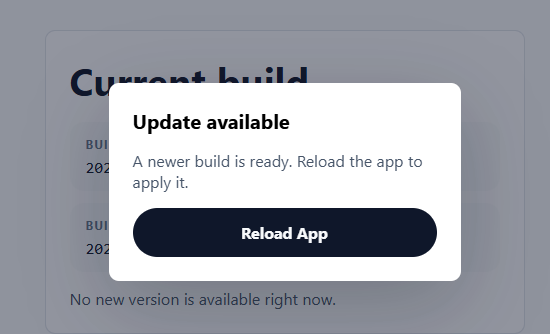
When the user clicks the "Reload App" button, the activateUpdate() method of the SwUpdate service is called to activate the new version. This method returns a promise that resolves when the new version is activated and ready to use. After that, the application reloads the page. Reloading is required because the currently running app is still using the old cached files. The new version will only take over after a reload. It's also essential to reload the page after activating the new version, because otherwise you can end up with a mix of old and new files in cache and memory, which can cause all kinds of weird bugs and errors.
      await this.#swUpdate.activateUpdate();
      document.location.reload();
In this application, we require the user to click a "Reload app" button to activate the new version. You could do this automatically if you want, but that is usually not recommended because it can lead to unexpected reloads. The time between checkForUpdate() and the new version being ready can be several seconds, depending on the size of the update and the user's network speed. During that time, the user might be interacting with the app, filling out forms, writing comments, or doing other work. An automatic reload would interrupt their workflow and cause them to lose their work.
Showing a dialog that forces the user to reload immediately can also be disruptive. In these cases, it might be better to show a dialog where the user has the option to dismiss the update and reload later, or to not show anything and only show the update dialog on a read-only page where no work can be lost. If you give the user the option to dismiss the update, the disadvantage is that they continue working with the old version. For a critical bug fix, it might be better to force the update.
Calling checkForUpdate 
As mentioned before, Angular calls checkForUpdate() automatically on app startup. If you want to check for updates at other times, you can call it manually. There are many possible strategies for when to call it. You could call it every time the user navigates to a new page, or you could call it periodically every hour. Another interesting option, especially on mobile devices, is to listen for events like 'online' or 'visibilitychange' and call it when the user goes online or comes back to the app after it was in the background.
Polling 
Using interval() from RxJS, you can call checkForUpdate() periodically. This example calls checkForUpdate() every minute. This might be a bit too often for a real application, because each check causes a network request to the server.
    interval(60_000)
      .pipe(startWith(0), takeUntilDestroyed(this.#destroyRef))
      .subscribe(() => this.#checkForUpdates());
Listen for online events 
The window object emits an 'online' event when the user goes online after being offline. If your users often use the app while offline, and are offline for a long time, it might be a good idea to check for updates when they go online again.
windowRef.addEventListener('online', this.#handleOnline);
  readonly #handleOnline = (): void => {
    void this.#checkForUpdates();
  };
Listen for visibility change events 
The Page Visibility API allows you to detect when the user switches to another tab or minimizes the browser, and when they come back to the app. On mobile devices, these events are emitted when the user switches to another app and comes back.
This example calls the service worker update check when the application becomes visible again.
this.#document.addEventListener('visibilitychange', this.#handleVisibilityChange);
  readonly #handleVisibilityChange = (): void => {
    if (this.#document.visibilityState !== 'visible') {
      return;
    }

    void this.#checkForUpdates();
  };
Testing on localhost 
To test the service worker, we need to build the application in production mode, because the service worker is only enabled by default in production builds. You could enable the service worker in development mode. I usually don't do that because the service worker can interfere with development and cause confusion when files are cached and not updated as expected.
After building the application, you need to serve the generated files from a static server. You could use any server for this; this example uses a small Bun server in scripts/serve.ts, which serves the generated files from the dist folder.
There is a serve script in the package.json of this example application that starts the server.
bun run build
bun run serve
To trigger an update, build the app again. There is a prebuild script that updates the src/app/build-info.ts file with the current timestamp, so that a new version is detected on each build.
Serve the application again with bun run serve and you should see the update flow in action. Also check the network tab to see the requests to ngsw.json and the new version files being downloaded.
Wrapping up 
With the SwUpdate service, you have full control over the update flow of your Angular application. You can check for updates whenever you want, and you can decide how to inform the user and when to activate the new version. Instead of waiting for the user to close the app and open it again, you can prompt them to reload as soon as the new version is ready. This allows you to get critical bug fixes and new features to your users much faster, without having to wait for them to update naturally. This is especially advantageous for mobile web applications, where users might keep the app open in the background for a long time and miss important updates if they have to wait for a natural reload.