After I showed you how to expose a service behind a NAT or firewall with a VPN and a virtual private server in my previous blog post, we will look at another way to achieve the same goal with a different technology stack.
In this tutorial, we use the Tor network and set up an onion service, formerly called a hidden service, to expose a service running on a computer that is not accessible from the public internet. Compared to the previous VPN solution, this is straightforward to set up, but accessing these services requires a bit of configuration and special software.
Tor 
Tor is free software for enabling anonymous communication and consists of thousands of relays that help hide a user's IP address. To access the Tor network, you need special software. The easiest way to start is by downloading Tor Browser, a Firefox-based browser with an integrated Tor proxy and additional privacy hardening. When you access a website on the regular web, for example, https://www.google.com, the connection is routed through three Tor relays. You can inspect them from the site information menu in the address bar.
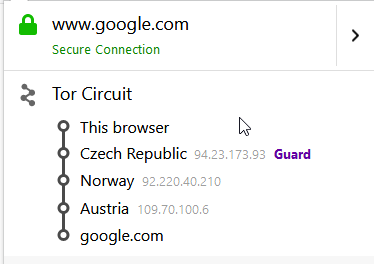
These relays hide my IP because all the server sees is the IP of the last node in the circuit, the exit node. Be aware that while everything from the browser to the exit node is encrypted, using HTTP over cleartext TCP means that the last node can read everything you send.
This is one use case of Tor Browser: accessing websites on the regular web while hiding your IP address. You can also access a special kind of service: Onion Services.
These services use the usual TCP/IP infrastructure but are only accessible from inside the Tor network. They can even run on servers that are not accessible from the internet and do not have a static IP address. Each server that wants to publish an onion service installs a Tor client. The client opens a permanent connection from the server to the Tor network and routes incoming traffic to the exposed services.
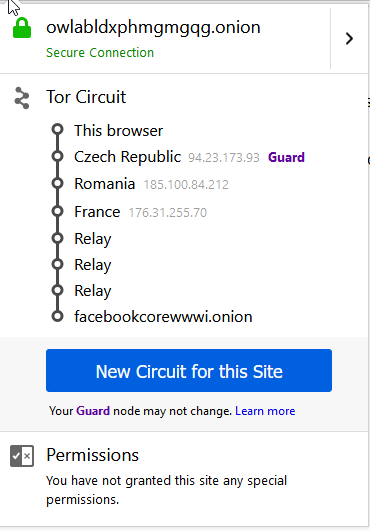
The traffic is usually routed over six servers when accessing an onion service: three servers from your browser to the rendezvous point and three servers from there to the target server. This way, Tor tries to hide the location of the client and the location of the server. Be aware that connecting to onion services takes longer because of the additional hops.
Expose Web Server 
For this demonstration, I will use my Raspberry Pi and install a web server, Nginx, to show the setup process.
sudo -i
apt install nginx
After the package has been installed, open a browser from another computer and check if you see the Nginx welcome page. Nginx listens by default on port 80.
To expose this service, we install the Tor client.
apt install tor
Open the configuration file torrc.
nano /etc/tor/torrc
Add the following two lines, or uncomment them if they already exist.
HiddenServiceDir /var/lib/tor/hidden_service/
HiddenServicePort 80 127.0.0.1:80
This configuration tells Tor to redirect requests that are sent to port 80 over the Tor network to 127.0.0.1:80, the interface where Nginx is listening for requests.
Save the file and restart Tor.
systemctl restart tor
Change into the onion service directory /var/lib/tor/hidden_service.
Here, you will find a hostname file and the service key material. On current Tor releases, this is typically stored in files such as hs_ed25519_secret_key and hs_ed25519_public_key.
cat hostname
This public onion address, usually a version 3 address with 56 characters before .onion, gives you access to your Nginx server through the Tor network.
Enter the URL from the hostname file into Tor Browser, and you should see the welcome page from Nginx.
When you click on the onion icon, you will see the six servers that routed the traffic from the browser to the Nginx server.
SSH 
Let's expose another service, this time the SSH server of the Raspberry Pi.
Open the configuration file again.
nano /etc/tor/torrc
Add the following two lines:
HiddenServiceDir /var/lib/tor/hidden_ssh/
HiddenServicePort 22 127.0.0.1:22
Restart Tor and look into the /var/lib/tor/hidden_ssh/ directory. Tor creates the onion address in hostname and, on current releases, also prepares the directory structure for version 3 client authorization.
If you want to protect the SSH onion service so that only selected clients can reach it, use the current v3 client authorization workflow. On the server side, place one .auth file per client into authorized_clients/. On the client side, place the corresponding .auth_private file into the directory configured by ClientOnionAuthDir, or import the key through Tor Browser's onion-service client-auth UI.
The resulting onion address looks different from the older examples because version 3 onion services use much longer addresses.
rh5d6reakhpvuxe2t3next6um6iiq4jf43m7gmdrphfhopfpnoglzcyd.onion
We cannot use Tor Browser itself to access this service because it is not an SSH client. However, Tor Browser also starts a local SOCKS5 proxy in the background. Go to the installation directory of Tor Browser and look for the folder
Browser/TorBrowser/Data/Tor
In this folder, you will find the file torrc. Close the browser and open this file with a text editor if you want to configure ClientOnionAuthDir there. For current version 3 client authorization, do not add HidServAuth; instead, store the .auth_private file in the directory configured by ClientOnionAuthDir, or use Tor Browser's built-in UI for onion-service client authentication.
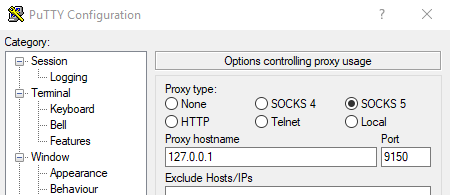
Start Tor Browser again; this automatically starts the SOCKS5 proxy. You can use this proxy from any application on your computer that provides proxy support. The SSH client I usually use is PuTTY, and it has SOCKS5 support built-in. Start PuTTY, open the menu Connection -> Proxy, select SOCKS5, and enter the hostname 127.0.0.1 and the port 9150.
Go to Sessions and enter the onion address into the Host Name field.
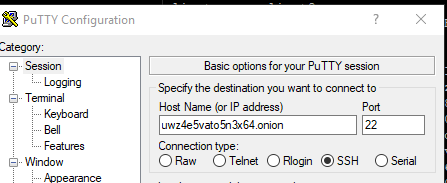
Open the connection, and you should see the login from the SSH server.
Instead of installing the complete Tor Browser on Windows, you can install just the Tor daemon from the Tor download page. The Expert Bundle is primarily intended for developers and people who need to bundle Tor with another application. If you start Tor/tor.exe, the SOCKS5 proxy usually listens on port 9050 unless you change it in torrc. Adjust your SSH client settings accordingly.