In this blog post, we will explore a way to expose services running on a computer behind a NAT or firewall to the Internet. For example, you might have a small server at home and want to access this server, or perhaps the entire network, from anywhere in the world.
If your ISP assigns a static public IP address to your router, you can forward ports in your firewall to the services you want to expose.
However, it's not very common for home users to get static IP addresses where I live. Instead, I typically get dynamic IP addresses from my ISP. With dynamic IP addresses, you can use a dynamic DNS service. This service maps your current external IP address to a domain name, and each time your ISP assigns a new IP address to your router, it updates the dynamic DNS service. This functionality is often implemented in firewalls and router operating systems. For example, pfSense, the firewall I use, includes a configuration page for setting up dynamic DNS.
One problem you might face is that ISPs sometimes block ports. Commonly, they block the outgoing port 25 to prevent spam email messages. This is especially a problem when you plan to run your email server at home.
Other solutions to expose services include tools like ngrok and localtunnel. They start a tunnel from your machine to an external server and assign a public URL to this tunnel. Traffic from this URL is forwarded through the tunnel to your service. They are very convenient to use. ngrok, for example, consists of just one binary. You download and run it without any installation.
The architecture of the solution we will build in this blog post is very similar to theirs.
Overview 
Here is an overview of the solution:

On the right side, you have a computer that sits behind a NAT router or firewall and cannot be directly accessed from the Internet. This could be a small server in your home; I am using a Raspberry Pi for this demo.
We set up a server with a static public IP address on the left side. For this demo, I rented a VPS from Amazon Lightsail and chose one of the smallest instances. These small VPSs are more than enough for running a VPN. This setup is not restricted to a Lightsail VPS; it works with any VPS from any provider and with any server that has a static public IP address.
We set up a VPN between the two machines with WireGuard, so both computers can communicate with each other as if they are on the same local network.
When we want to access our private server, we connect to the public IP address of the VPS, and the connection gets forwarded over the VPN to our server at home.
VPN 
Now that we have seen the architecture of this solution, let's start by configuring the WireGuard VPN. If you want to follow this tutorial and also use a Lightsail VPS, go to my previous blog post and follow the instructions up to and including the section Install required packages.
Install WireGuard following the instructions on this page. For Debian-based distributions, you install it with apt.
sudo apt update
sudo apt install wireguard
Open an SSH connection to both machines. WireGuard uses public/private key cryptography, and we need to create a key pair on each machine and then exchange the public keys.
Run the following two commands on both computers. The first command creates the private key and writes it directly into the WireGuard configuration file. The second command creates the public key, writes it into the file publickey, and prints it to the console.
(umask 077 && printf "[Interface]\nPrivateKey = " | sudo tee /etc/wireguard/wg0.conf > /dev/null)
wg genkey | sudo tee -a /etc/wireguard/wg0.conf | wg pubkey | sudo tee /etc/wireguard/publickey
Make a note of both public keys and open the WireGuard configuration file on both machines.
sudo nano /etc/wireguard/wg0.conf
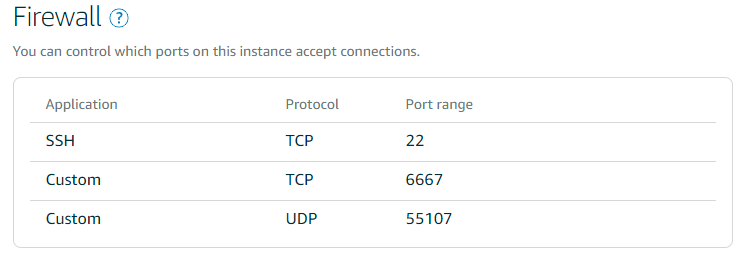
Enter the following configuration settings. For this example, I assign 192.0.2.1 to the VPS and 192.0.2.2 to the server at home. These addresses come from the RFC 5737 documentation range and are safe to use in examples only. In a real setup, choose a private network that is not already assigned to your home network. In the configuration below, replace 203.0.113.10 with your VPS server's external static IP address. The port I want WireGuard to connect to is UDP 55107. Make sure that you open a UDP port in the firewall of your VPS for WireGuard. Choose a random port.
VPS
[Interface]
PrivateKey = qHOQs4...
ListenPort = 55107
Address = 192.0.2.1

[Peer]
PublicKey =  ums9y... <--- public key from the machine at home
AllowedIPs = 192.0.2.2/32
Home Server (Pi)
[Interface]
PrivateKey = OKNAiUi/u...
Address = 192.0.2.2

[Peer]
PublicKey = GJtb+O7nnT... <---- public key from VPS
AllowedIPs = 192.0.2.1/32
Endpoint = 203.0.113.10:55107
PersistentKeepalive = 25
See the Quickstart Guide under the section NAT and Firewall Traversal Persistence for a description of why you sometimes need PersistentKeepalive. The tunnel closes after a few minutes without any traffic in my environment. The PersistentKeepalive solves that problem by periodically (every 25 seconds) sending packets over the VPN.
Start WireGuard on both machines and enable it so that it automatically starts up the next time you reboot the computer.
sudo systemctl start wg-quick@wg0
sudo systemctl enable wg-quick@wg0
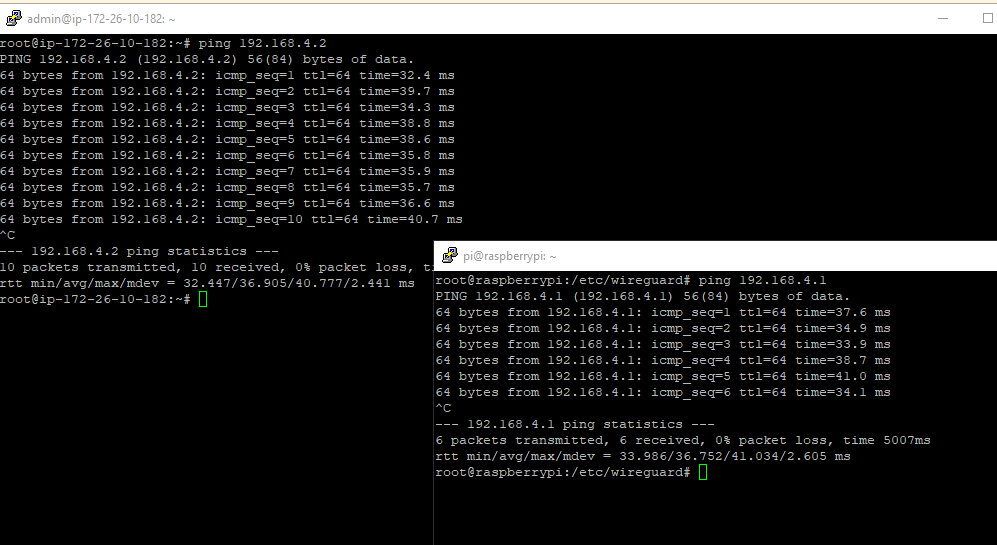
When everything is configured correctly, you should now be able to ping each computer from the other.
Forward traffic 
For this demo, I will install ngIRCd on the Raspberry Pi.
sudo apt install ngircd
This is a lightweight IRC server that listens, by default, on port TCP 6667.
I can connect to this service on my home network, but I want to expose it so that my friends can connect to it from anywhere.
For this purpose, I need to add some firewall rules to the VPS. On current Debian releases, nftables is the recommended native firewall framework, so the commands below use nft directly.
The examples in this section are IPv4-only. That is why the NAT table below uses the ip family and why the WireGuard example only assigns IPv4 addresses. If you also want to forward IPv6 traffic, add IPv6 addresses to the WireGuard configuration and create matching ip6 or inet rules for the forwarded traffic.
Connect to the VPS with SSH and display the current network configuration.
sudo ip -4 addr show scope global
2: eth0: <BROADCAST,MULTICAST,UP,LOWER_UP> mtu 9001 qdisc pfifo_fast state UP group default qlen 1000
    inet 198.51.100.20/24 brd 198.51.100.255 scope global eth0
       valid_lft forever preferred_lft forever
3: wg0: <POINTOPOINT,NOARP,UP,LOWER_UP> mtu 8921 qdisc noqueue state UNKNOWN group default qlen 1
    inet 192.0.2.1/32 scope global wg0
       valid_lft forever preferred_lft forever
We need some of this information for setting up the firewall rules. Notice that on Amazon Lightsail, the servers have an internal address in addition to the public address. In the example above, I use the RFC 5737 documentation address 198.51.100.20 as a placeholder. Packet forwarding from the public address to this internal address is outside our control. Amazon handles this automatically.
Here, we create a filter table, add a forward chain with a default drop policy, and then allow IRC traffic from eth0 to wg0.
sudo nft add table inet filter
sudo nft 'add chain inet filter forward { type filter hook forward priority 0; policy drop; }'
sudo nft add rule inet filter forward iifname "eth0" oifname "wg0" tcp dport 6667 ct state new,established accept
sudo nft add rule inet filter forward iifname "wg0" oifname "eth0" ct state established,related accept
Next, we add NAT rules. The first rule changes the destination address in the TCP packet to 192.0.2.2, the address of the Raspberry Pi on the other side of the VPN. This rule only applies to packets coming from eth0 and with a destination port of 6667. The second rule changes the source address so that the Raspberry Pi can send the response back to our server.
sudo nft add table ip nat
sudo nft 'add chain ip nat prerouting { type nat hook prerouting priority dstnat; }'
sudo nft 'add chain ip nat postrouting { type nat hook postrouting priority srcnat; }'
sudo nft add rule ip nat prerouting iifname "eth0" tcp dport 6667 dnat to 192.0.2.2
sudo nft add rule ip nat postrouting oifname "wg0" ip daddr 192.0.2.2 tcp dport 6667 snat to 192.0.2.1
If you are new to nftables, the Debian nftables wiki page is a good reference for the syntax and the persistence model.
If you prefer to maintain the firewall as a file instead of typing interactive commands, the following /etc/nftables.conf example contains the same rules for the IRC and SSH forwarding shown in this article:
#!/usr/sbin/nft -f

flush ruleset

table inet filter {
    chain forward {
        type filter hook forward priority 0;
        policy drop;

        ct state established,related accept

        iifname "eth0" oifname "wg0" tcp dport 6667 ct state new,established accept
        iifname "eth0" oifname "wg0" tcp dport 22 ct state new,established accept
    }
}

table ip nat {
    chain prerouting {
        type nat hook prerouting priority dstnat;

        iifname "eth0" tcp dport 6667 dnat to 192.0.2.2
        iifname "eth0" tcp dport 22222 dnat to 192.0.2.2:22
    }

    chain postrouting {
        type nat hook postrouting priority srcnat;

        oifname "wg0" ip daddr 192.0.2.2 tcp dport 6667 snat to 192.0.2.1
        oifname "wg0" ip daddr 192.0.2.2 tcp dport 22 snat to 192.0.2.1
    }
}
You can find more information there if something is not working properly. Also, double-check if you enabled IP forwarding on this server (/etc/sysctl.conf). And make sure that you open the port of the service (6667) in the firewall of the VPS.
Forward SSH traffic 
You can forward any traffic from the VPS to your private server. In this section, I show you how to forward SSH traffic. The Lightsail VPS already uses port 22 for its SSH server, so we will choose another port (22222) and forward packets to this port to the other side of the VPN.
Make sure that you open the port in the firewall. Then, add the following rules. The PREROUTING rule in this example changes the destination address and the port from 22222 to 22 because the SSH server on the Raspberry Pi is listening on port 22.
sudo nft add rule inet filter forward iifname "eth0" oifname "wg0" tcp dport 22 ct state new,established accept
sudo nft add rule ip nat prerouting iifname "eth0" tcp dport 22222 dnat to 192.0.2.2:22
sudo nft add rule ip nat postrouting oifname "wg0" ip daddr 192.0.2.2 tcp dport 22 snat to 192.0.2.1
Remember to harden your SSH server when you expose it like this. Choose a secure password, or even better, disable password authentication and use public/private key authentication. Also, disable root login over SSH.
Persistent nftables rules 
nftables rules are usually stored in /etc/nftables.conf and loaded by the nftables service during boot. If you use the configuration-file approach, write the example ruleset into /etc/nftables.conf, test it, and then enable the service.
sudo apt install nftables
sudo editor /etc/nftables.conf
sudo nft -f /etc/nftables.conf
sudo systemctl enable nftables
If you built the rules interactively first, you can still export the current ruleset with sudo sh -c 'nft list ruleset > /etc/nftables.conf'.