In a previous blog post, I showed you how to write a web application that displays photos on a map. The article demonstrated how to extract GPS coordinates and then display a marker for each photo on Google Maps.
This blog post demonstrates an alternative to Google Maps: MapTiler. MapTiler provides services for map integration based on OpenStreetMap data. They offer customizable street and satellite maps, developer APIs, map hosting, and geocoding, making it a versatile alternative to other mapping platforms.
To get started with MapTiler, create an account on their website: https://www.maptiler.com/ The free account works for non-commercial projects.
Once you have created an account and logged into the platform, create an API key. Provide a name and description, then specify a domain in the "Allowed HTTP Origins" field. For local testing, enter "localhost". The Allowed HTTP Origins setting matters because the API key is visible in the client-side JavaScript code. Without specified origins, anyone can use your API key. Adding a domain restricts the API key to requests from that domain only.
Setup 
MapTiler provides a JavaScript SDK for displaying maps in your web application. Install the SDK:
npm install @maptiler/sdk
Add a div element to your HTML where the map will be displayed:
<div id="map"></div>
Add a CSS rule for this div element to set its size. The div must have non-zero height.
  <style>
    body { margin: 0; padding: 0; }
    #map { position: absolute; top: 0; bottom: 0; width: 100%; }
  </style>
Import the CSS rules for the map itself. MapTiler provides a CSS file you can import. If you use a bundler that supports CSS imports, add the following line to your JavaScript file. This example uses Vite, which supports CSS imports:
import '@maptiler/sdk/dist/maptiler-sdk.css';
You can link the CSS file in your HTML file from the MapTiler CDN. Ensure
the version specified here matches the version of the SDK in your package.json file.
<link href='https://cdn.maptiler.com/maptiler-sdk-js/v3.8.0/maptiler-sdk.css' rel='stylesheet' />
Import the MapTiler SDK in your JavaScript file.
import * as maptilersdk from '@maptiler/sdk';
Set the API key.
maptilersdk.config.apiKey = 'W61XbXMJwzZapVydUu4s';
Create the map. The container option specifies the ID of the div element where
the map will be displayed. Choose between a globe and mercator projection. Specify the initial center and zoom level.
The style option selects a predefined style for the map. MapTiler provides several styles, such as BASIC, SATELLITE, and
STREETS. The project page of the MapTiler SDK has a list of available styles with screenshots.
const map = new maptilersdk.Map({
  container: 'map',
  projection: 'globe',
  style: maptilersdk.MapStyle.HYBRID,
  center: [8.5417, 47.3769],
  zoom: 12
});
Check the documentation page for all available map options.
The map instance raises various events. This application uses the load event. The map fires this event after all resources have been downloaded and the first complete rendering has occurred.
map.on('load', () => {
  loadPhotos();
});
Load the photo data and display markers on the map at this point.
Markers 
The MapTiler SDK provides the Marker class to display markers on the map.
const marker = new maptilersdk.Marker()
  .setLngLat([30.5, 50.5])
  .addTo(map);
This approach works well for a few markers. However, when you add many markers close to each other, users struggle to interact with them. This application displays pictures when users click on markers.
Clusters offer a better solution for displaying many points. Markers group together in clusters, displayed as a single marker. When users click on a cluster, it expands to show the individual markers inside.
The SDK provides the needed functionality. Add all photo locations to the map with the addSource method.
This requires the coordinates in GeoJSON format. The photo metadata is stored in JSON that does not follow the GeoJSON format.
The application converts this JSON into GeoJSON format.
  let bounds = new maptilersdk.LngLatBounds();

  const geojson = {
    type: 'FeatureCollection',
    features: photos.map(photo => {
      bounds.extend([photo.lng, photo.lat]);
      return {
        type: 'Feature',
        geometry: {
          type: 'Point',
          coordinates: [photo.lng, photo.lat]
        },
        properties: {
          img: photo.img,
          ts: photo.ts
        }
      };
    })
  };
During conversion, the application tracks the bounding box of all photos in the bounds variable. This determines the pan and zoom settings so all markers and clusters remain visible.
  map.fitBounds(bounds, {
    padding: 20
  });
The code adds the GeoJSON to the map with addSource. This method adds various data sources to the map, including raster tiles, vector tiles, images, videos, canvas, and GeoJSON data.
  map.addSource('photos', {
    type: 'geojson',
    data: geojson,
    cluster: true,
    clusterMaxZoom: 14,
    clusterRadius: 50
  });
Adding the source alone shows nothing on the map. The application needs layers that define how to display the data.
The application adds three layers to the map.
The cluster layer displays as a circle. The circle's color and radius depend on the number of points in the cluster. The step expression defines different colors and sizes for different point count ranges.
  map.addLayer({
    id: 'clusters',
    type: 'circle',
    source: 'photos',
    filter: ['has', 'point_count'],
    paint: {
      'circle-color': [
        'step',
        ['get', 'point_count'],
        '#51bbd6',
        100,
        '#f1f075',
        750,
        '#f28cb1'
      ],
      'circle-radius': [
        'step',
        ['get', 'point_count'],
        20,
        100,
        30,
        750,
        40
      ]
    }
  });
The cluster count layer displays the number of points in the cluster as text.
  map.addLayer({
    id: 'cluster-count',
    type: 'symbol',
    source: 'photos',
    filter: ['has', 'point_count'],
    layout: {
      'text-field': '{point_count_abbreviated}',
      'text-font': ['DIN Offc Pro Medium', 'Arial Unicode MS Bold'],
      'text-size': 12
    }
  });
The third layer shows individual markers as circles. The filter ['!', ['has', 'point_count']] displays only unclustered points.
  map.addLayer({
    id: 'unclustered-point',
    type: 'circle',
    source: 'photos',
    filter: ['!', ['has', 'point_count']],
    paint: {
      'circle-color': '#11b4da',
      'circle-radius': 8,
      'circle-stroke-width': 1,
      'circle-stroke-color': '#fff'
    }
  });
Check the reference documentation to learn more about layers.
Events 
The application configures two event listeners.
The first listener handles clicks on cluster circles. When users click on a cluster, the map zooms in and expands the cluster. The source object provides the method getClusterExpansionZoom that returns the zoom level at which the cluster expands. The easeTo method animates the map to the new zoom level.
  map.on('click', 'clusters', async function (e) {
    const features = map.queryRenderedFeatures(e.point, {
      layers: ['clusters']
    });
    const clusterId = features[0].properties.cluster_id;
    const zoom = await map.getSource('photos').getClusterExpansionZoom(clusterId);
    map.easeTo({
      center: features[0].geometry.coordinates,
      zoom
    });
  });
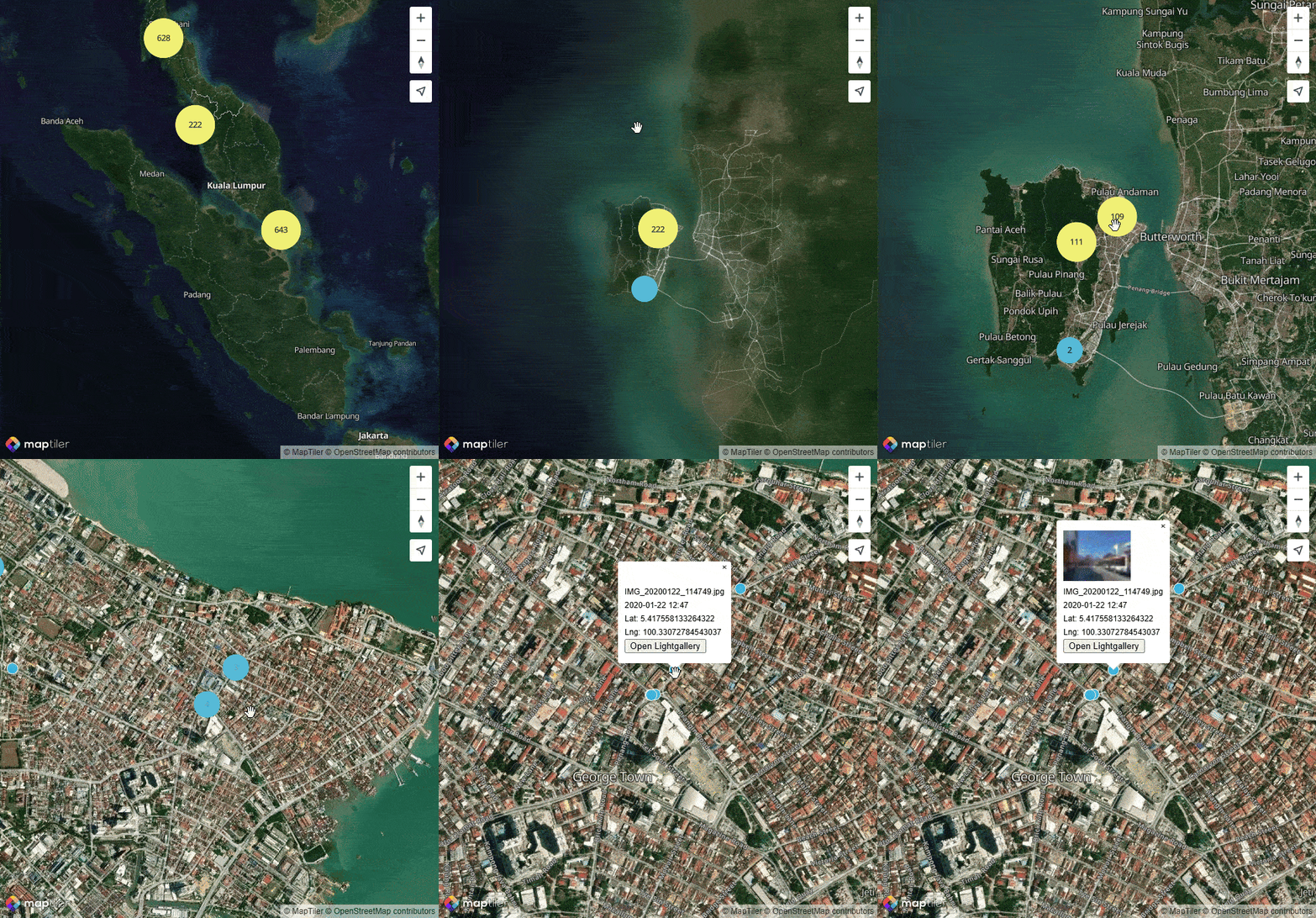
The second listener handles clicks on unclustered points. When users click on an individual marker, a popup displays the image thumbnail, timestamp, and coordinates. The popup contains a button to open the full image in a lightbox gallery.
The SDK provides the Popup component for displaying popups. Specify the coordinates where the popup should display and the HTML content.
  map.on('click', 'unclustered-point', function (e) {
    const coordinates = e.features[0].geometry.coordinates.slice();
    const img = e.features[0].properties.img;

    while (Math.abs(e.lngLat.lng - coordinates[0]) > 180) {
      coordinates[0] += e.lngLat.lng > coordinates[0] ? 360 : -360;
    }

    const ts = e.features[0].properties.ts;
    const lat = e.features[0].geometry.coordinates[1];
    const lng = e.features[0].geometry.coordinates[0];
    const timestamp = ts ? format(new Date(ts * 1000), 'yyyy-MM-dd HH:mm') : '';

    new maptilersdk.Popup()
      .setLngLat(coordinates)
      .setHTML(`<img src="assets/thumbnails/${img}" alt="${img}" style="width: 100px;"/><br/><div>${img}</div><div>${timestamp}</div><div>Lat: ${lat}<br>Lng: ${lng}</div><button class="open-lightgallery">Open Lightgallery</button>`)
      .addTo(map);
  });
}
This video shows the result.
Conclusion 
MapTiler provides a powerful alternative to other mapping solutions like Google Maps. It offers a wide range of features and customization options. The SDK simplifies displaying maps, markers, and clusters in web applications. The free tier for non-commercial use lets you get started and experiment with the platform.
Check out MapTiler's homepage for an overview of all services they offer.